
Free job automation
How to Autofill Job Applications for Free in Chrome
By Guna · Reviewed
The free ApplyShortly Chrome extension fills recurring fields on job applications from your saved profile and answers. This guide walks through what to save, how to start autofill, and what to review before submitting.
1. What you can autofill for free
Profile and answer-bank autofill use zero AI credits. Save your contact details, résumé, work history, links, and answers to common screening questions so you can reuse them across applications.
You choose which jobs to apply for and can review the completed form before you submit.
2. What you need before you start
Set aside about ten minutes for the first-time setup. After that, each application takes a few minutes of your attention.
- A free ApplyShortly account at app.applyshortly.com, with your résumé uploaded and your profile reviewed and saved. Add your gender, date of birth, links and notice period if you want those survey and contact fields filled.
- Google Chrome, with the ApplyShortly Chrome extension installed from the Chrome Web Store and signed in to your account.
3. Autofill the application form
Open the job posting in Chrome. Navigate to the application form and open the ApplyShortly extension panel.
Watch the page. Fields fill from your profile and answer bank: name, email, phone number, portfolio links, notice period, and standard screening facts. When an open question needs a thoughtful answer, write a response specific to the role.
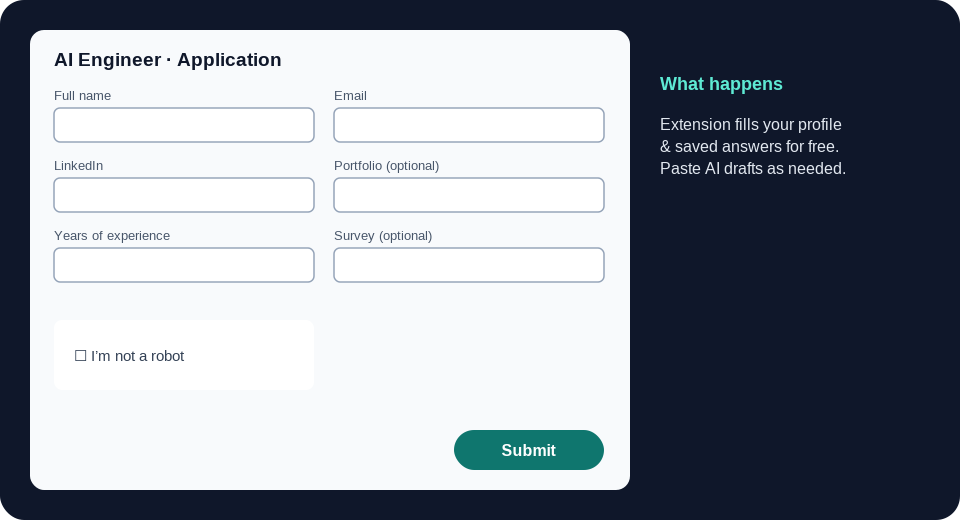
- Open the employer’s application form in your Chrome browser.
- Click the ApplyShortly extension icon or shortcut to open the popup, and choose Start applying.
- Review the filled fields, verifying contact information and dates.
- Write your answers in any remaining open-ended fields.
Tip: The extension fills fields verified against your profile. You inspect every change before moving to final review.
4. Review, solve the CAPTCHA and click Submit
Before you submit, review the whole form in the extension’s floating chat panel and check every highlighted field. Verify the résumé attachment, salary and notice-period answers, consent boxes and any text drafted by AI. You know the facts; the extension only knows what you saved.
A CAPTCHA is always yours. The extension fills accessible fields and pauses for you to complete any verification challenge or sign-in. Some location boxes also need you to pick a suggestion from the dropdown by hand. When everything looks right, click the employer’s own Submit button. ApplyShortly never claims a submission it has not seen confirmed.
- Check green (filled), amber (review) and dashed red (needs you) fields across the form.
- Fix or confirm each flagged item in the chat panel or directly on the page.
- Solve any CAPTCHA and pick any dropdown suggestion that needs manual selection.
- Click Submit on the employer’s form and wait for confirmation so ApplyShortly updates the application status.
Tip: The extension also offers an optional Auto submit switch with a cancellable three-second countdown. It stays off until you turn it on and never gets past a CAPTCHA or sign-in page.
5. Tips for better results, and what to avoid
Keep your profile current. Most wrong answers come from out-of-date facts, such as an old notice period or compensation. Spend a few minutes there before a batch of applications and everything downstream improves.
Apply to one job per company in a batch, and read each posting first. Mass-applying to every listing lowers the quality of each application and can look careless to recruiters. Avoid portals that need you to create an account or solve an emailed code during the fill: the extension stops at sign-in pages and verification steps by design.
Check the employer’s confirmation after submitting. A button click alone does not prove an application was received, and ApplyShortly marks unclear outcomes as needing verification. Keep notes of what you sent where, and review your board weekly.
6. Frequently asked questions
Is this really free? The extension is free and open source. Filling fields from your saved profile and answer bank uses zero AI credits.
Does it submit applications for me? Not unless you choose that. By default you click Submit yourself. You can switch on the extension’s Auto submit, which is optional, off by default, and always stops for missing required fields, CAPTCHAs and sign-in pages.
Which sites work? Standard employer forms and many applicant-tracking systems work well. LinkedIn, Naukri, Indeed and similar boards are only handled in your own tab, one job at a time, with no bulk automation. Forms embedded in frames, file pickers that Chrome blocks and unusual custom controls may need your hands.